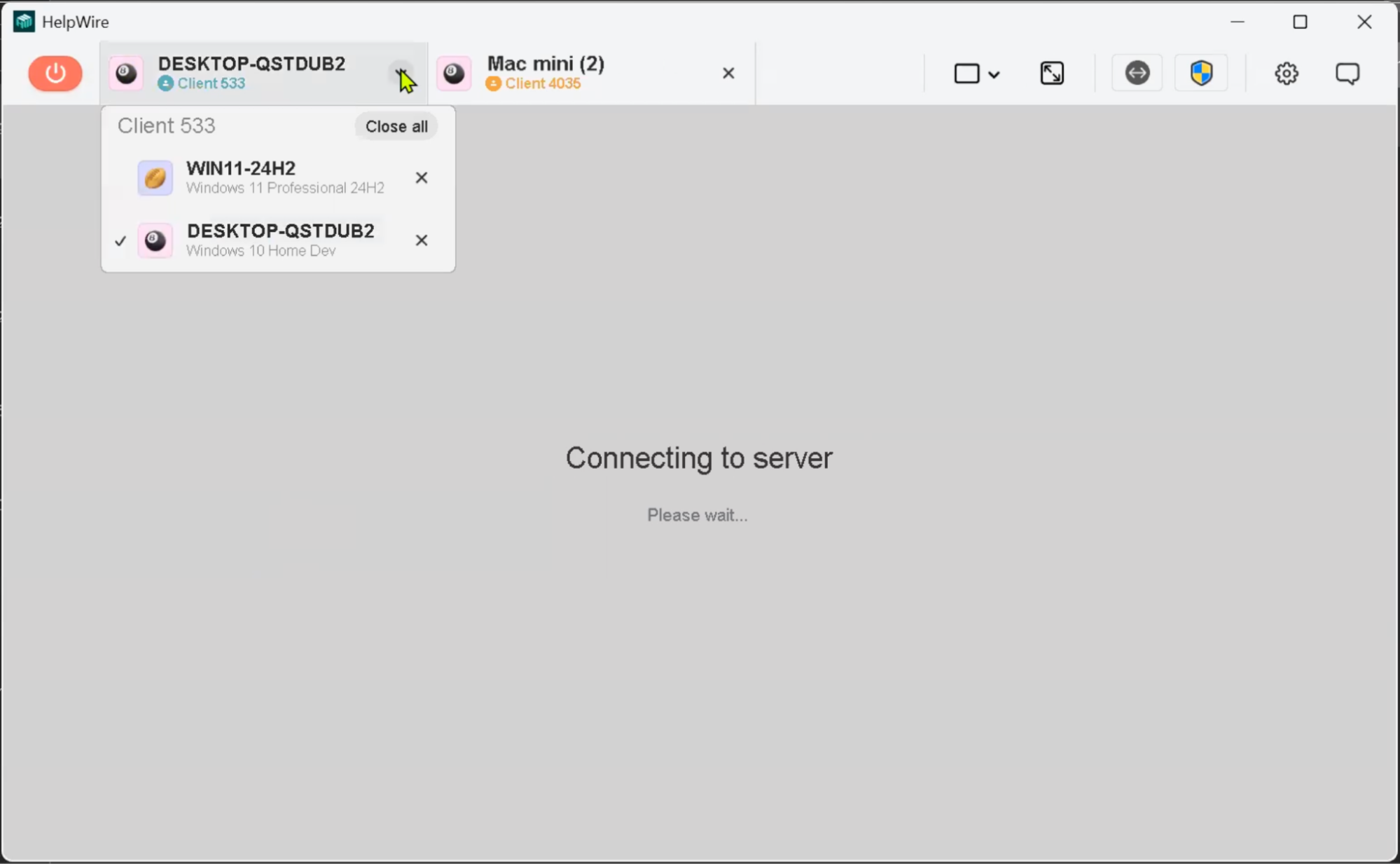
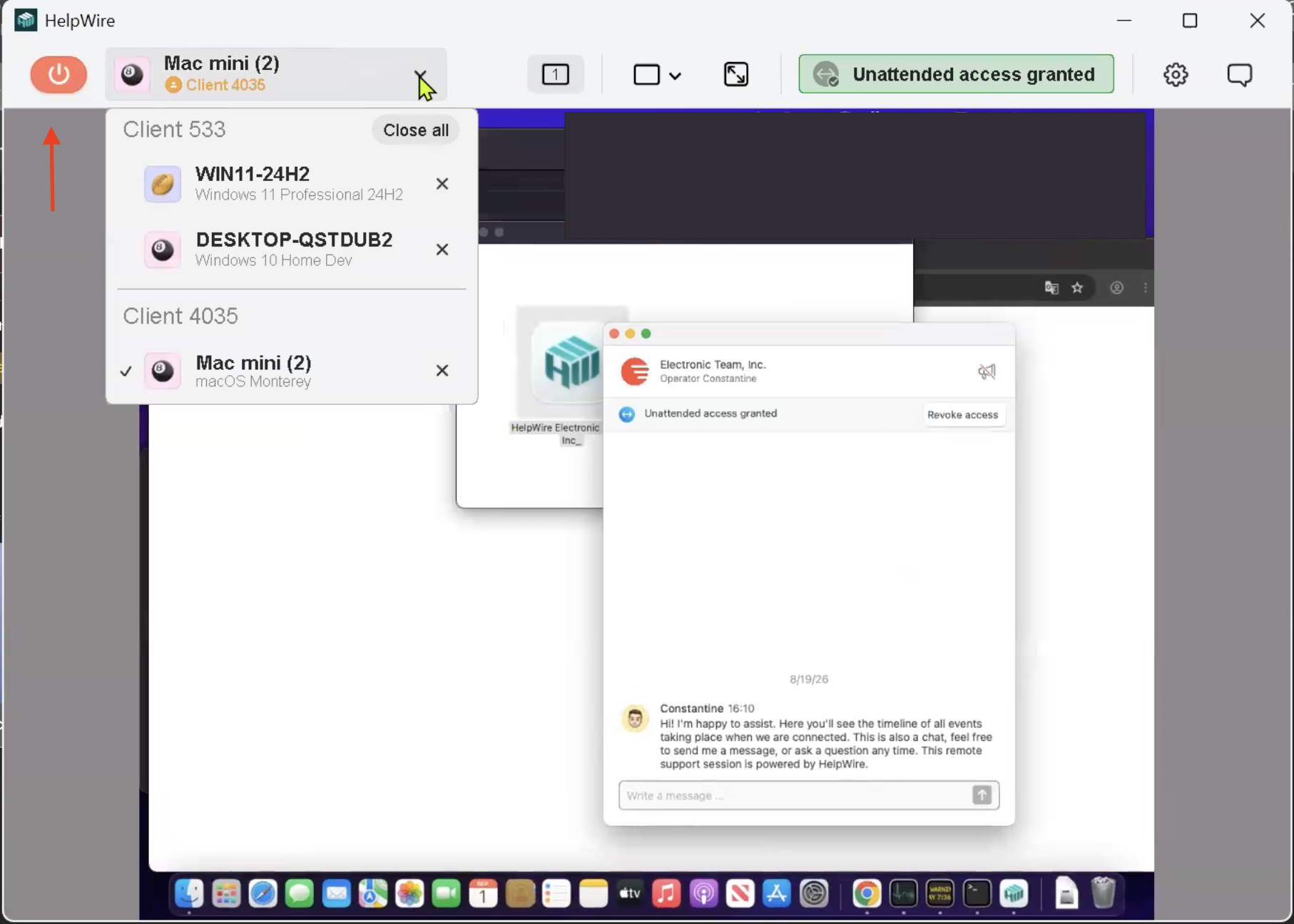
HelpWire allows you to run multiple remote sessions at once. You can easily connect to multiple clients or switch between different workstations of the same client.
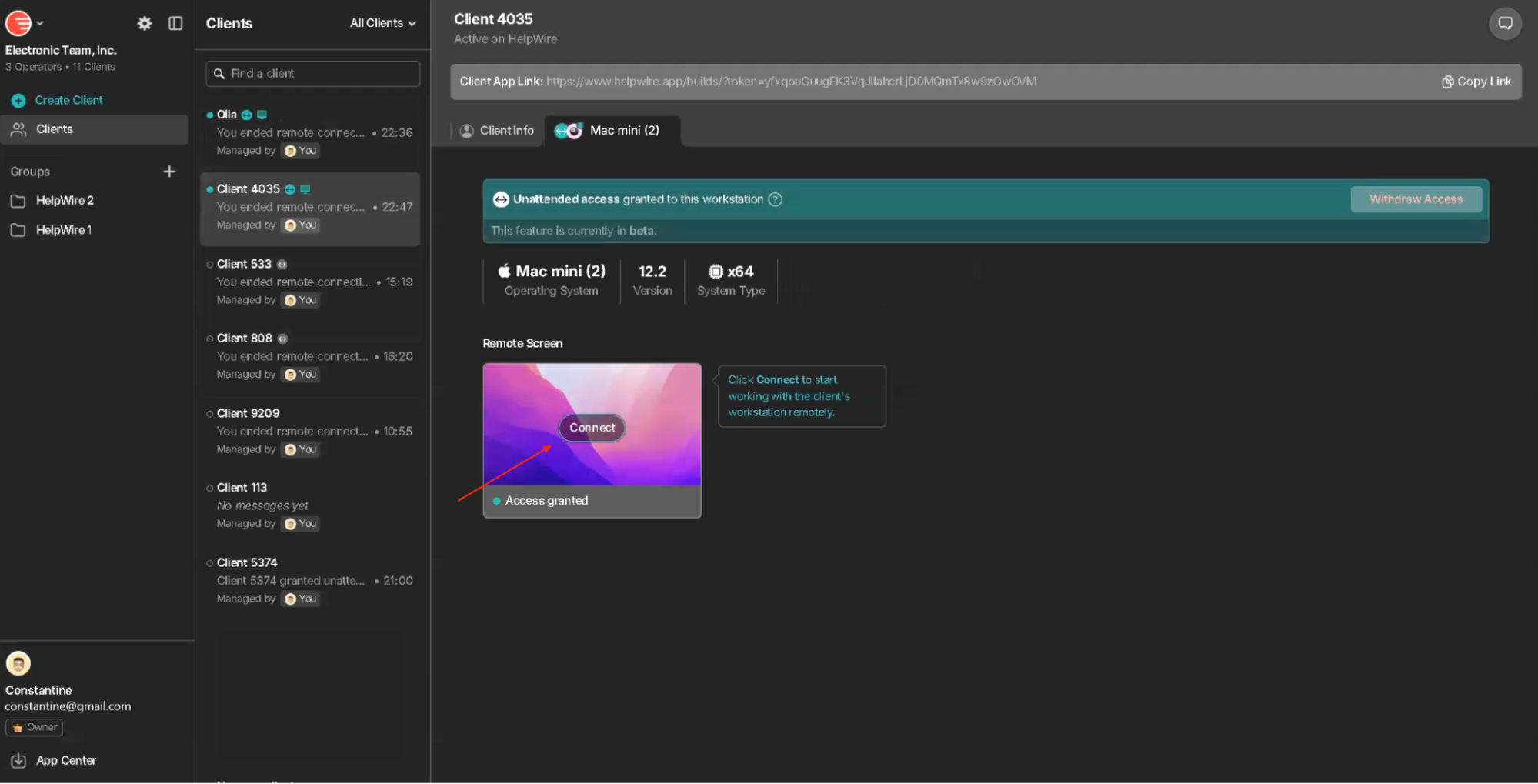
Every new connection should be established through the Web Portal.
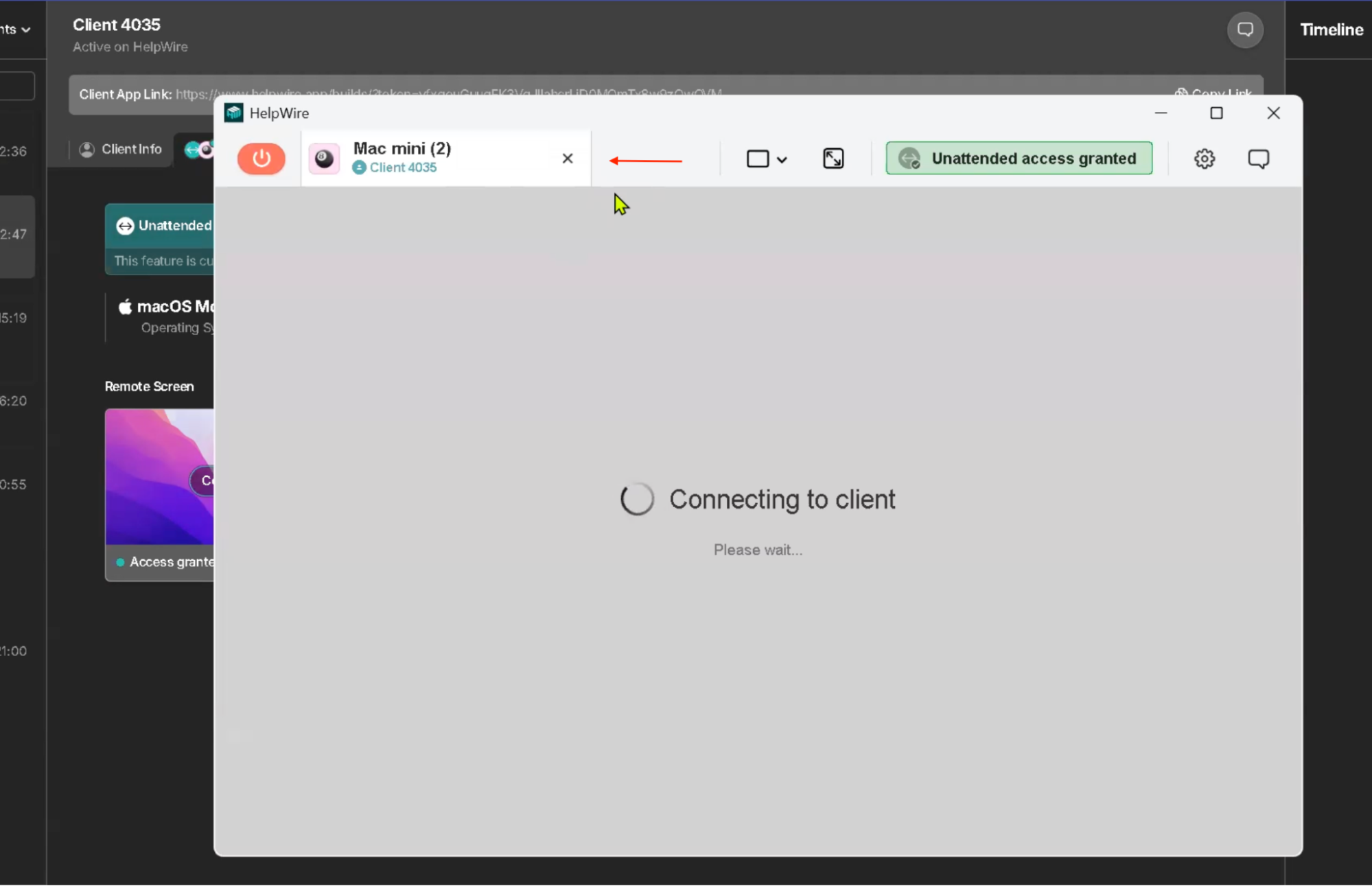
Once you click Connect on the remote workstation tile in your Web Portal, the workstation appears in the Operator app.
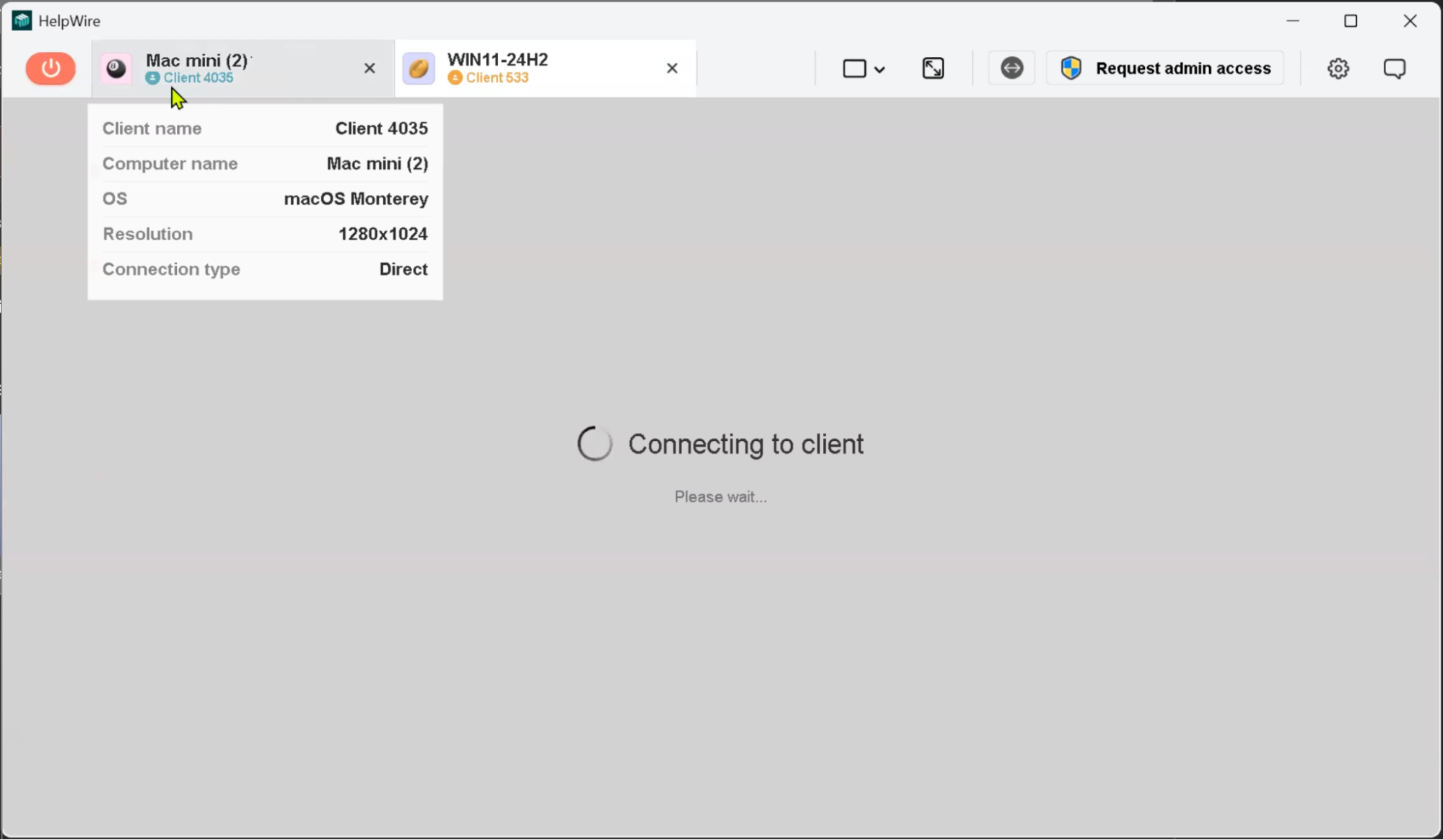
Hover over the workstation name in the toolbar to open details, including the client’s name, workstation name, operating system, and, after the connection is established, screen resolution and connection type.
When connecting to different workstations of the same client, the workstations are displayed next to each other in the toolbar.
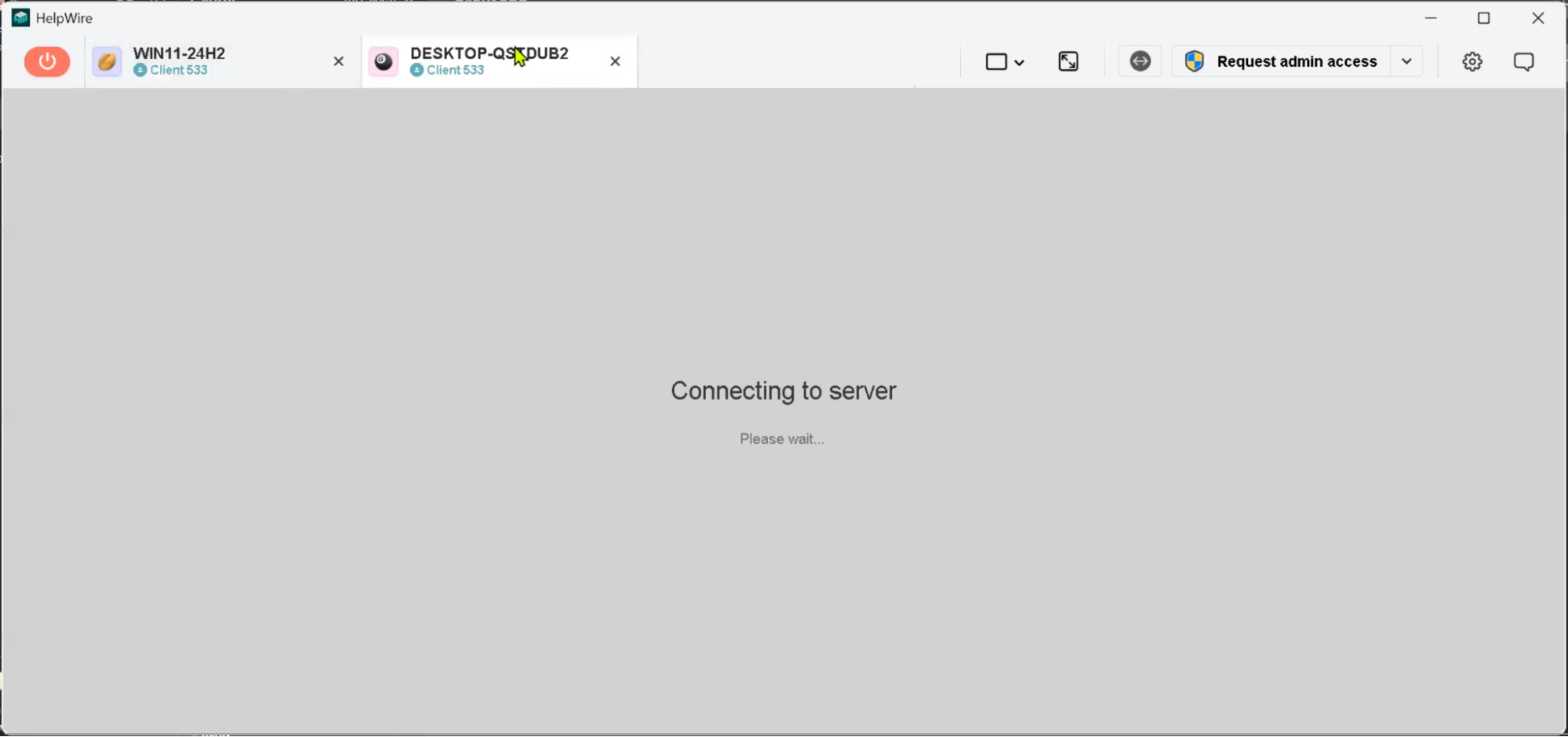
When connecting to different workstations of different clients, the workstations are grouped by clients. Each new client’s initially connected workstation appears next to another client’s one in the toolbar.
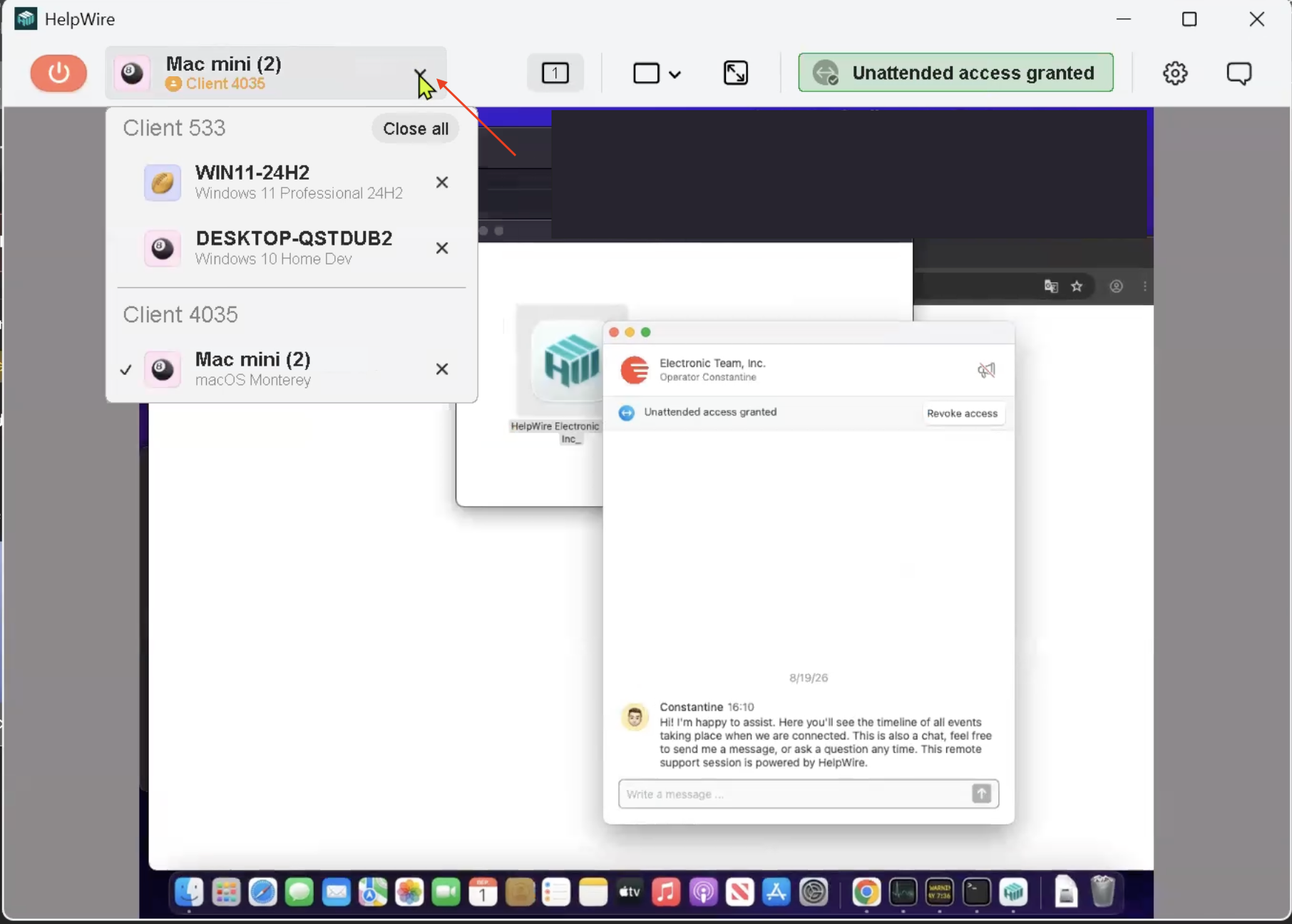
Click the arrow next to the workstation name to open the drop-down list of every active workstation under the client’s profile.
If the Operator app window is minimized, clients and connected workstations are shown in the drop-down list.
The workstation you initially connected to is displayed in the toolbar. Click the arrow next to the workstation name to see a complete drop-down list of all active clients and workstations.
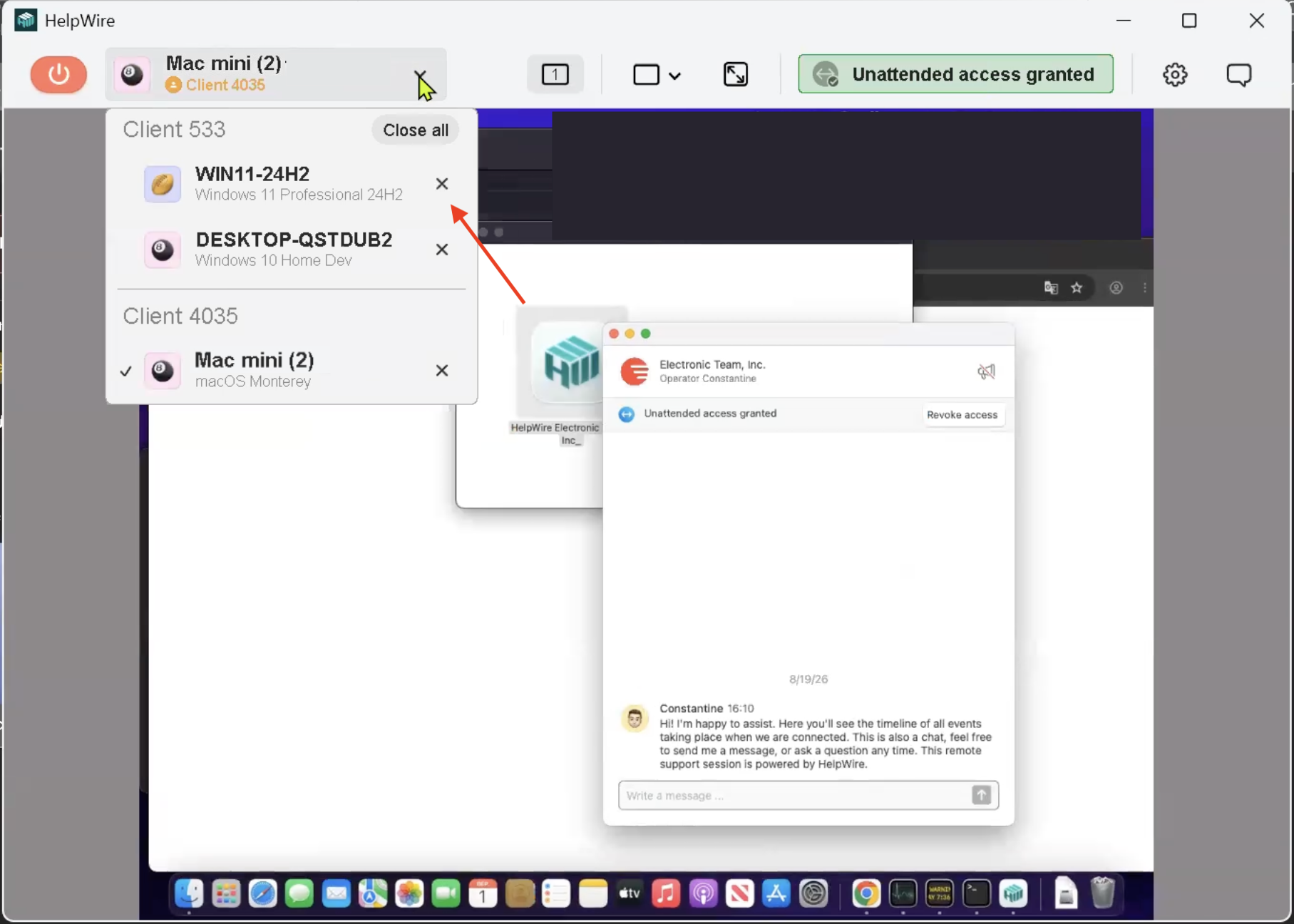
To disconnect from a workstation, click the “X” icon next to its name.
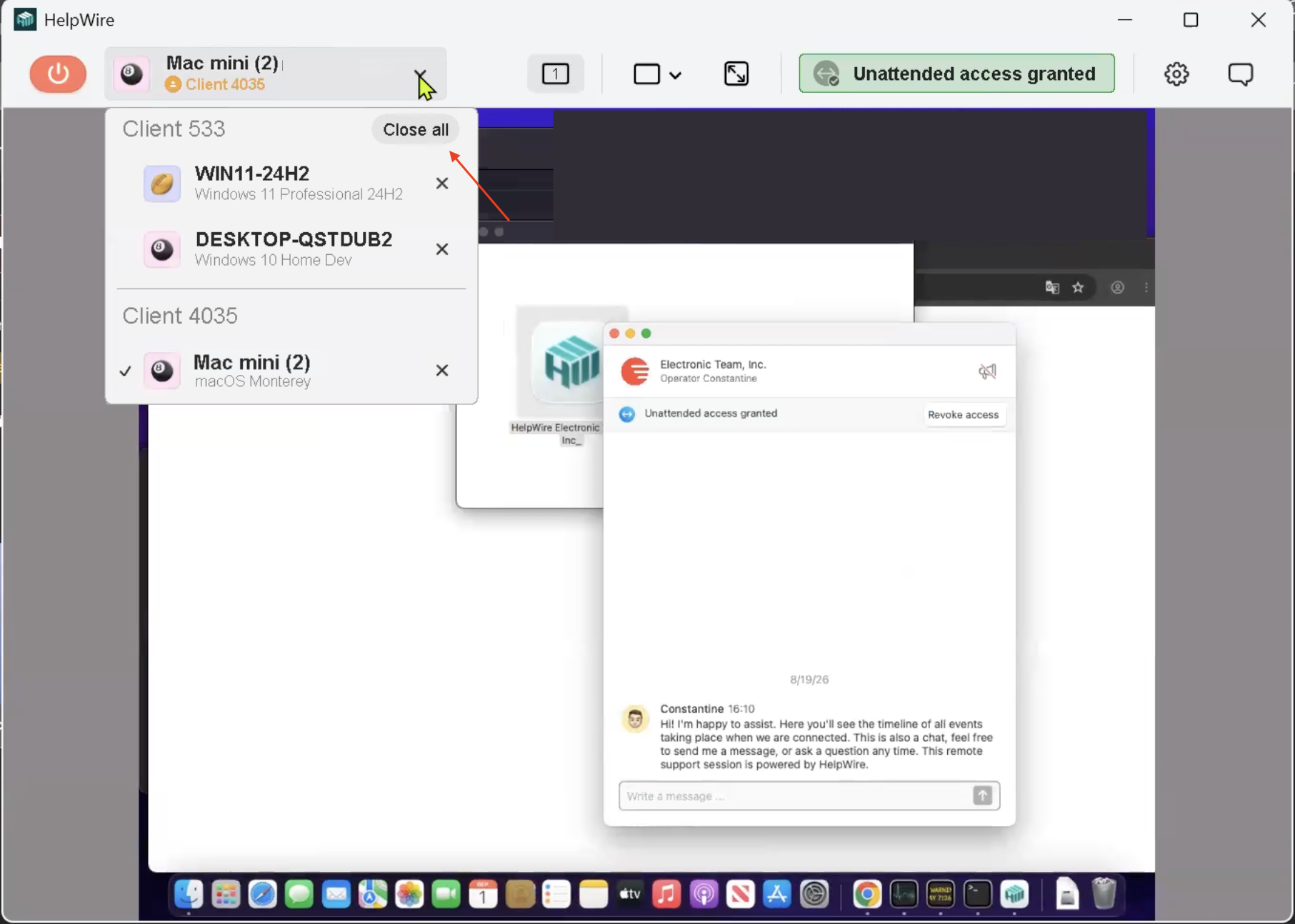
Click Close all if you want to end all the sessions with all the clients at once.
Or click the Disconnect button in the toolbar to end all sessions and close the Operator app.