Group clients

HelpWire allows organizing clients into groups to make it easier for Operators to find and manage clients’ profiles and provide timely remote assistance.

To create a new client group, do the following:
  1. Log in to your online HelpWire account.

  2. Click the plus icon in the left sidebar under your company info.
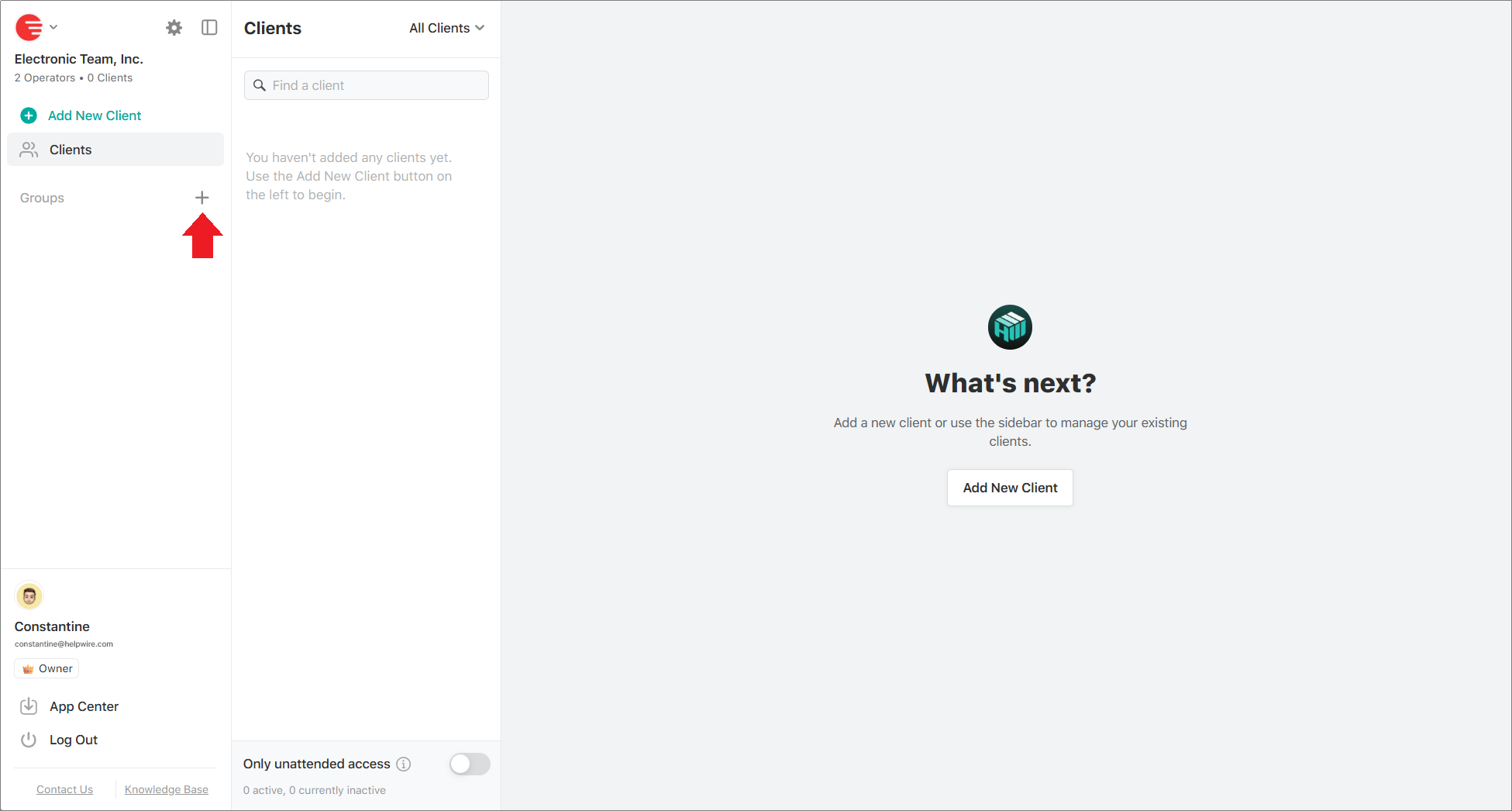
    Creating a new client group
  3. Name your new client group and click Add Group.
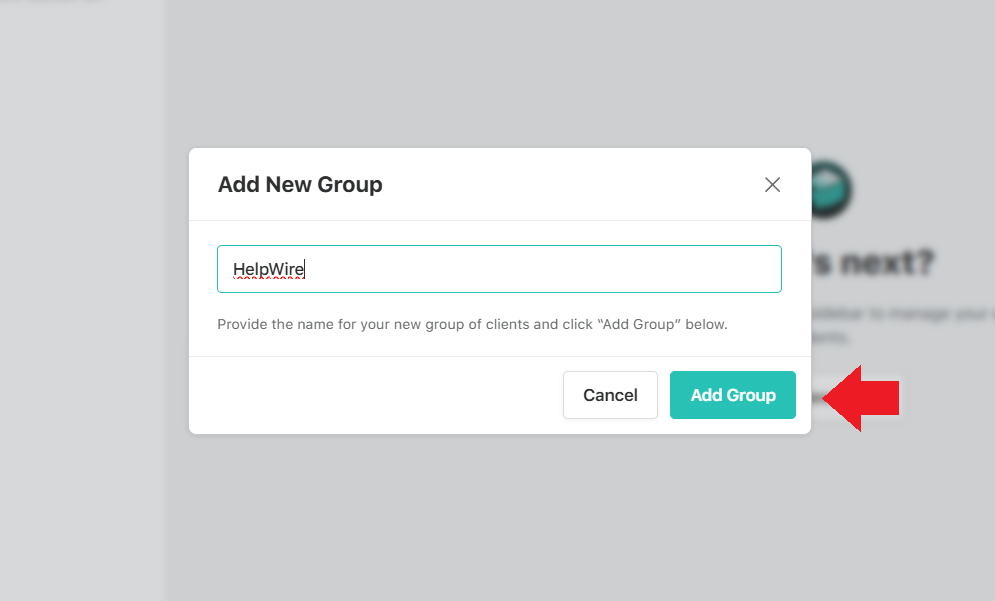
    Naming a new client group
  4. Now you can start adding clients to the newly created group. Click the Add New Client to Group button to add a new client.
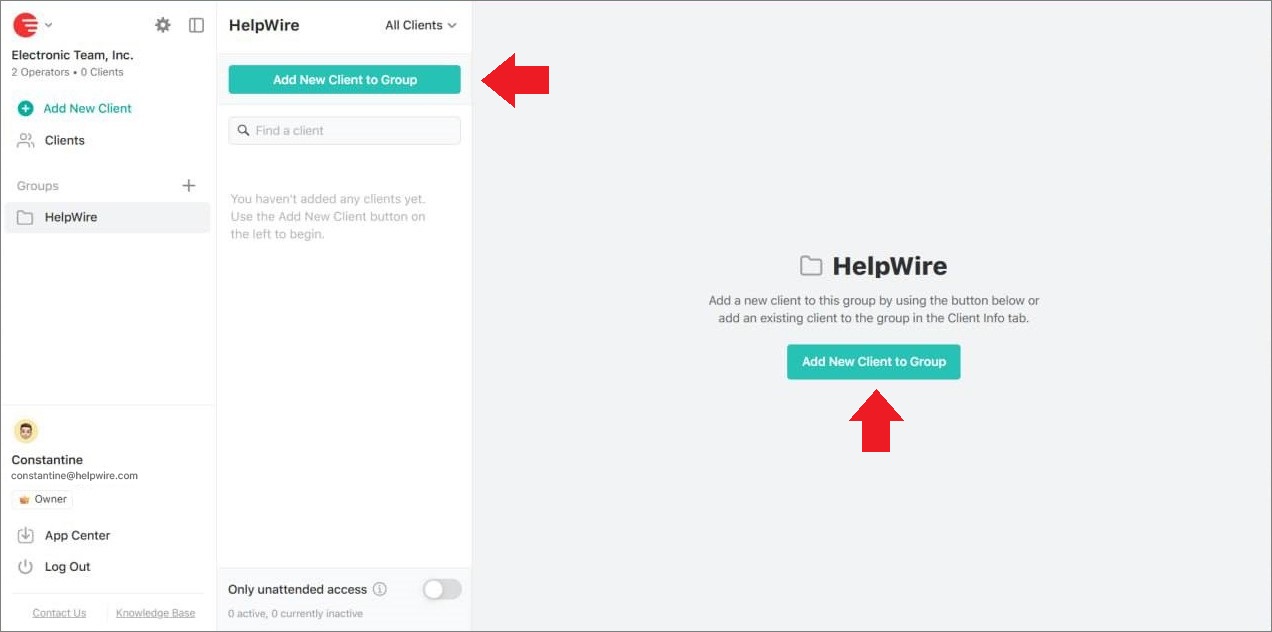
    Adding a new client to a group
  5. Once you click Add New Client to Group, HelpWire will create a new client profile within the selected group.
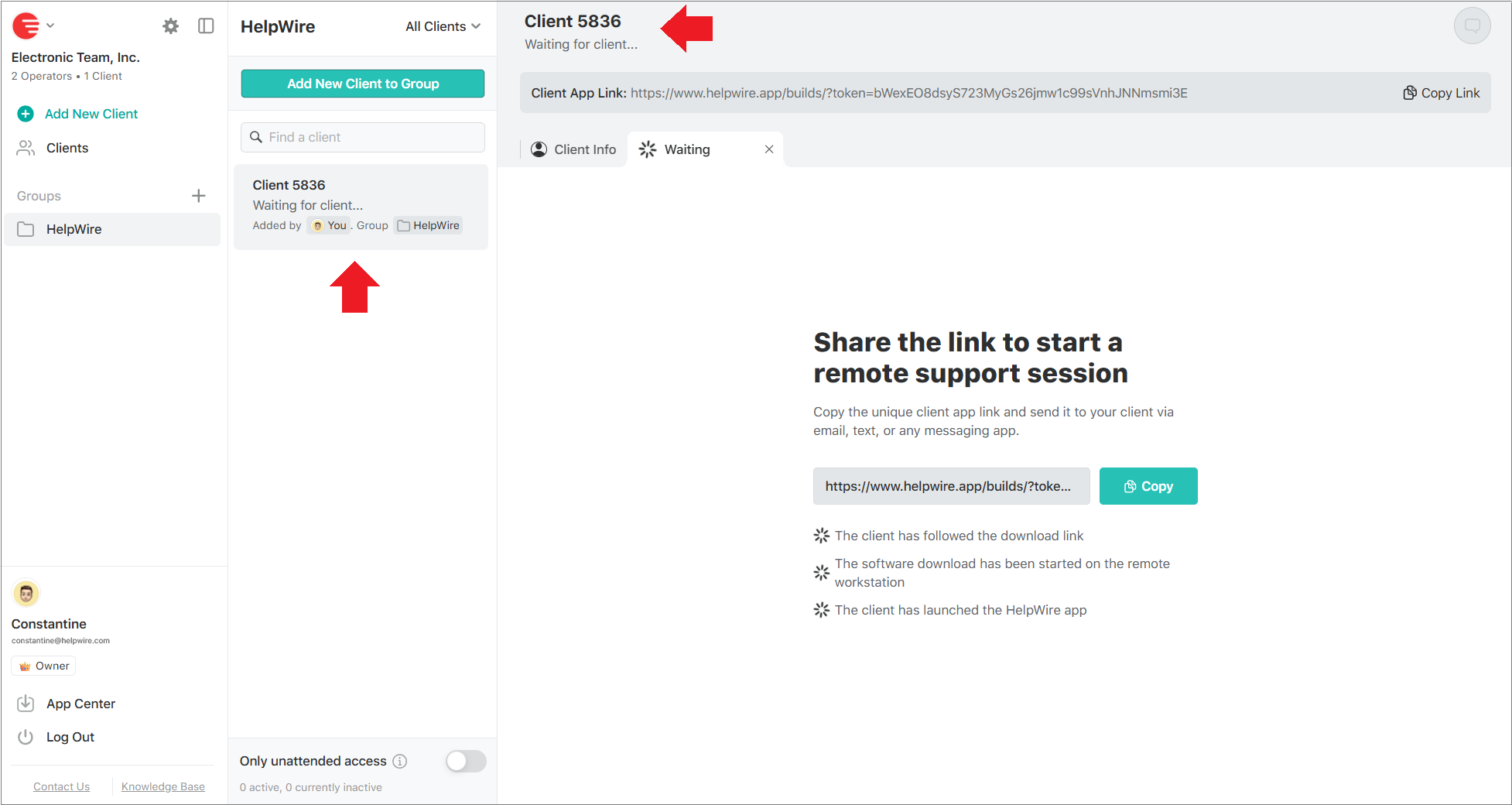
    Client’s profile in a group

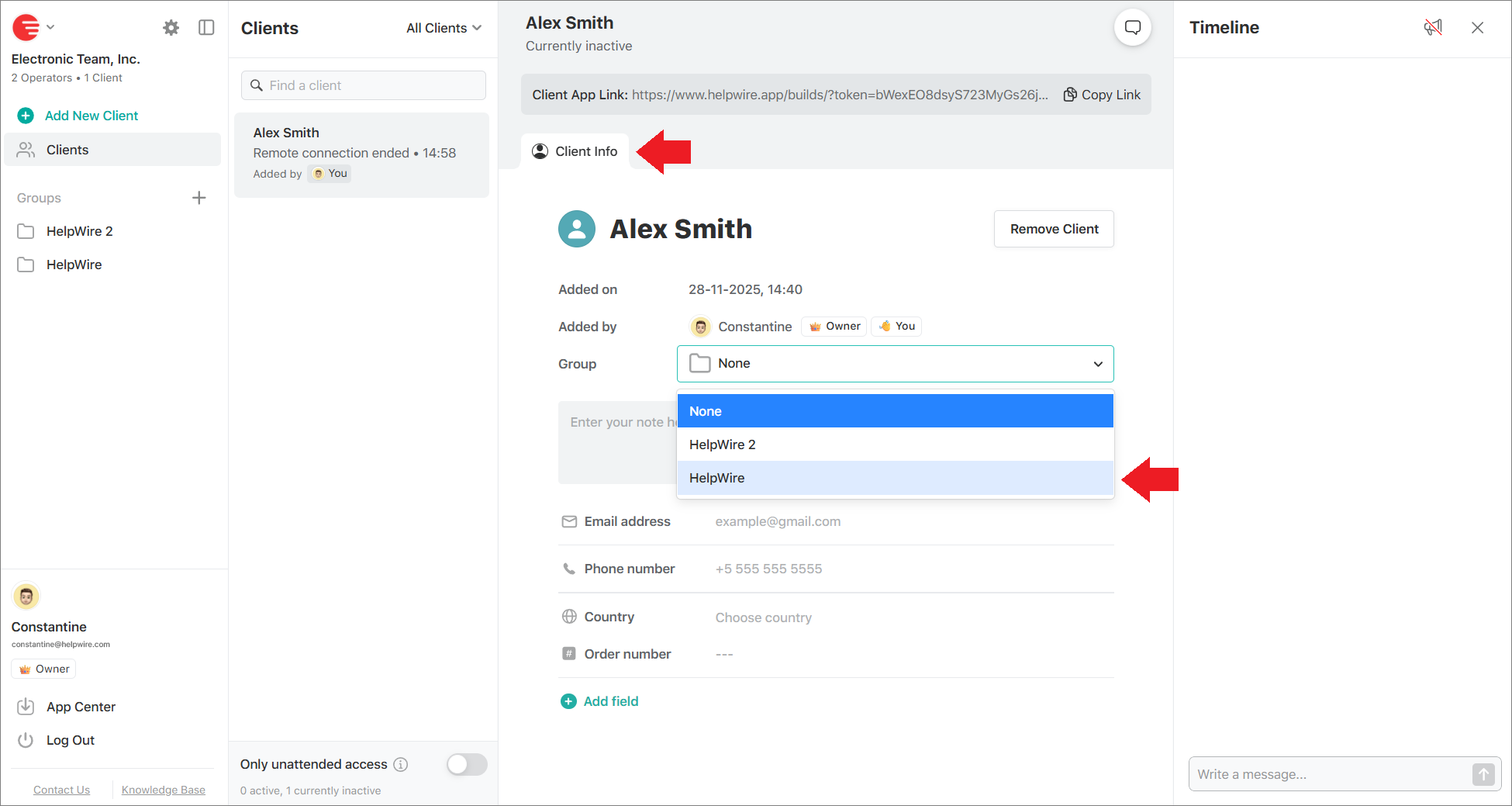
Also, you can add an existing client to a group by selecting the required option from the drop-down list in the Client Info tab.

Adding an existing client to a new group

You will always find your client groups in the left sidebar of your online HelpWire account.

Rename client groups

To rename an existing client group:

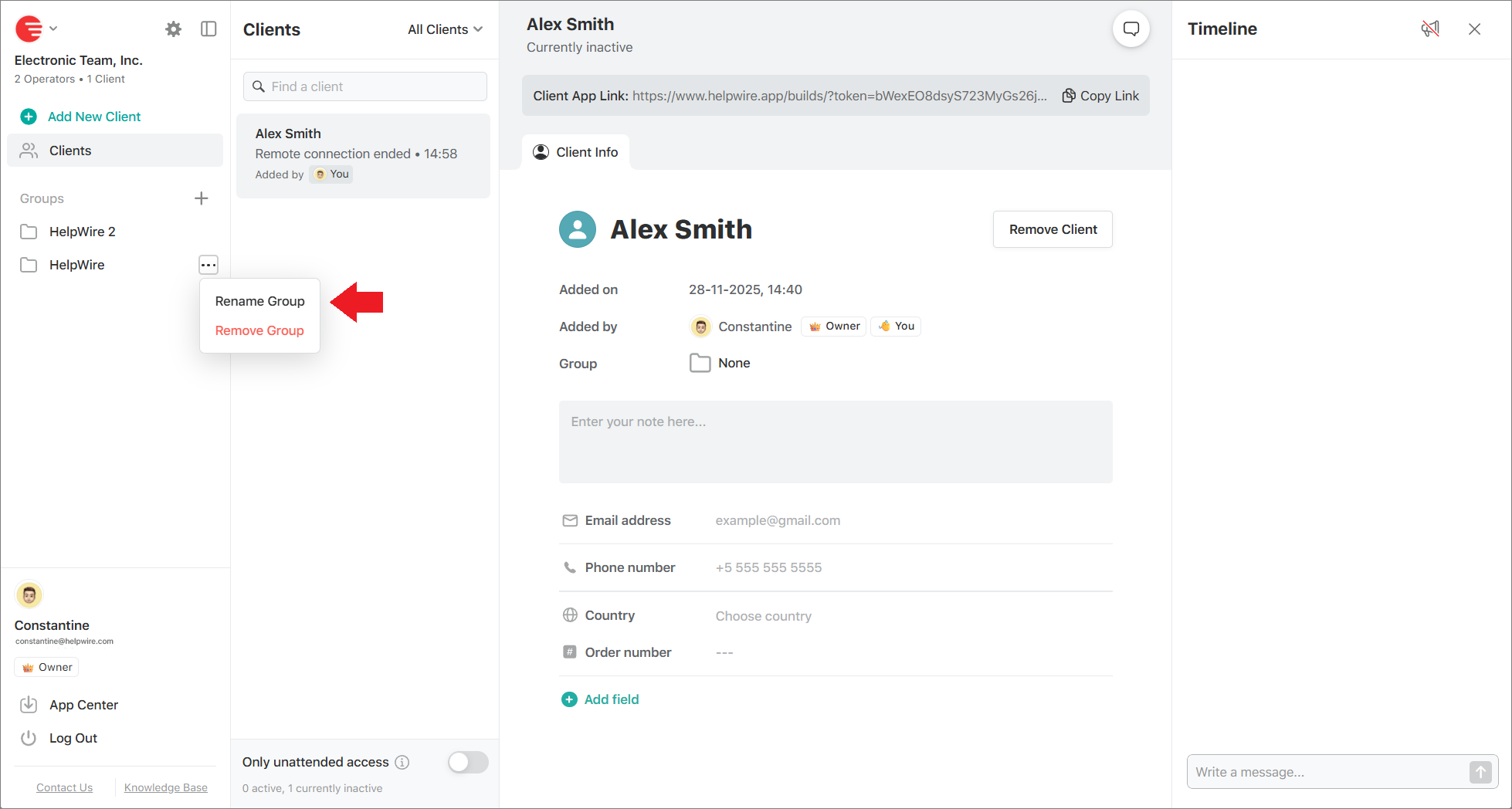
  1. Find the required group in the list in the left sidebar and click the Options icon options icon next to its name.

  2. Click the Rename Group option.

    Renaming a client group
  3. Enter a new group name and click Save.

    Saving a new group name

Remove client groups

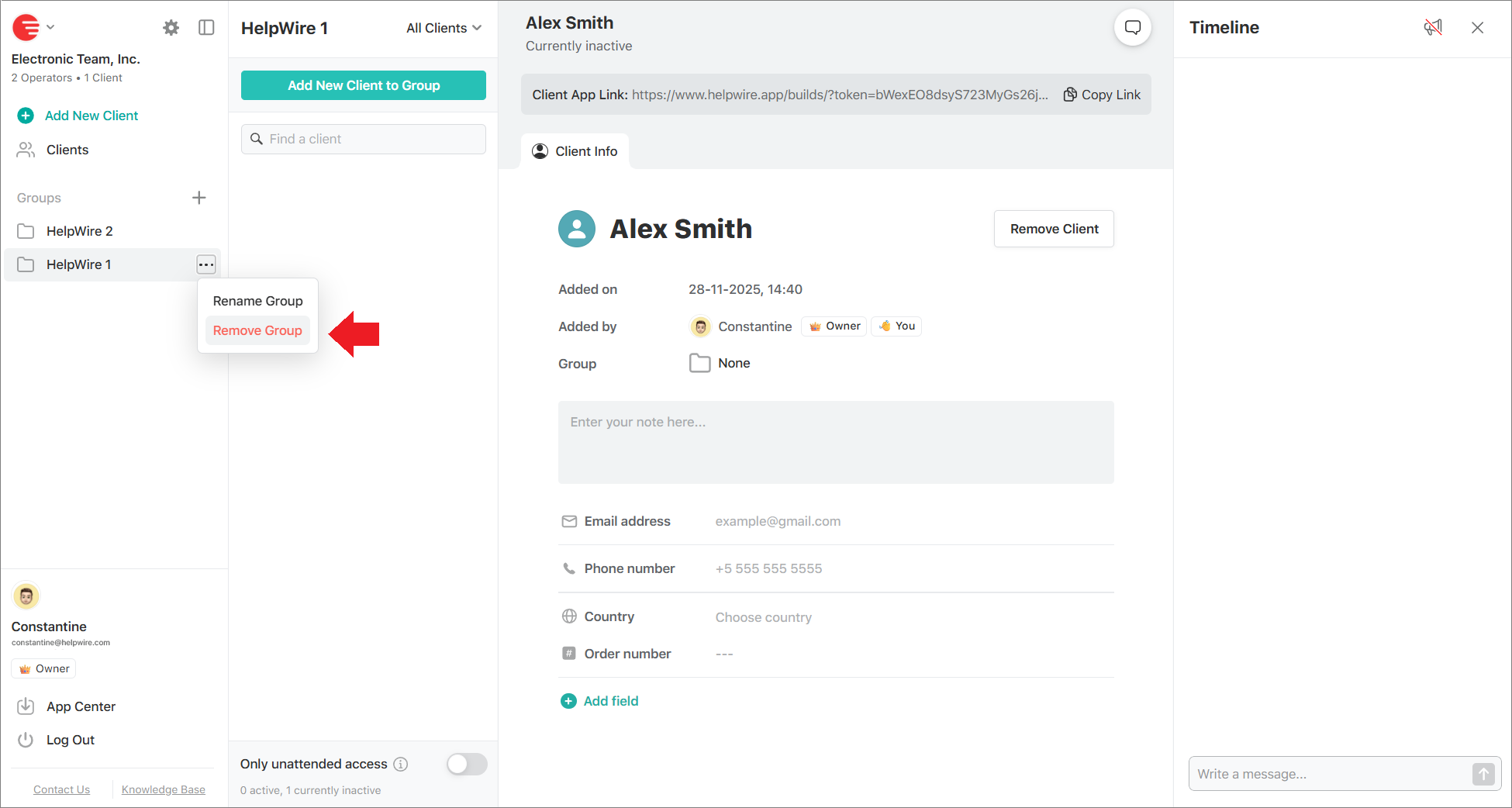
To remove a client group, find the group in the list in the left sidebar of your HelpWire account and click the Options icon next to its name. Then, select Remove Group.

Removing a client group
Was this article helpful?

Didn’t find what you were looking for?

Contact Support